
Adding an Instagram account to Google Search Console takes about two minutes: open the property picker, click "Add property", pick Instagram, approve two consent screens, done. The hard part isn't the setup — it's knowing what you're approving and reading the empty report that greets you afterwards correctly.
We captured a screenshot of each of the seven steps while running them on our own account (@soleachagency). The analytics figures are blurred; everything else is exactly as it appeared. The same flow works identically for TikTok, X and YouTube — at step three you simply pick a different row from the list.
If you want to know what this feature is and which data it does and doesn't give you, start here instead: Google Search Console now accepts Instagram, TikTok and YouTube accounts. This guide is about the setup itself.
What you need before you start
- A Google account. It's fine if you've never used Search Console before — platform properties don't require you to own a website.
- Admin access to the Instagram account. Verification happens by signing into the account itself; there's no verification code or DNS record involved.
- Ideally both your Google and Instagram sessions open in the same browser. If they aren't, you'll be asked to sign in mid-flow — nothing breaks, it just takes longer.
- Two minutes. The setup is short; the real waiting starts after it.
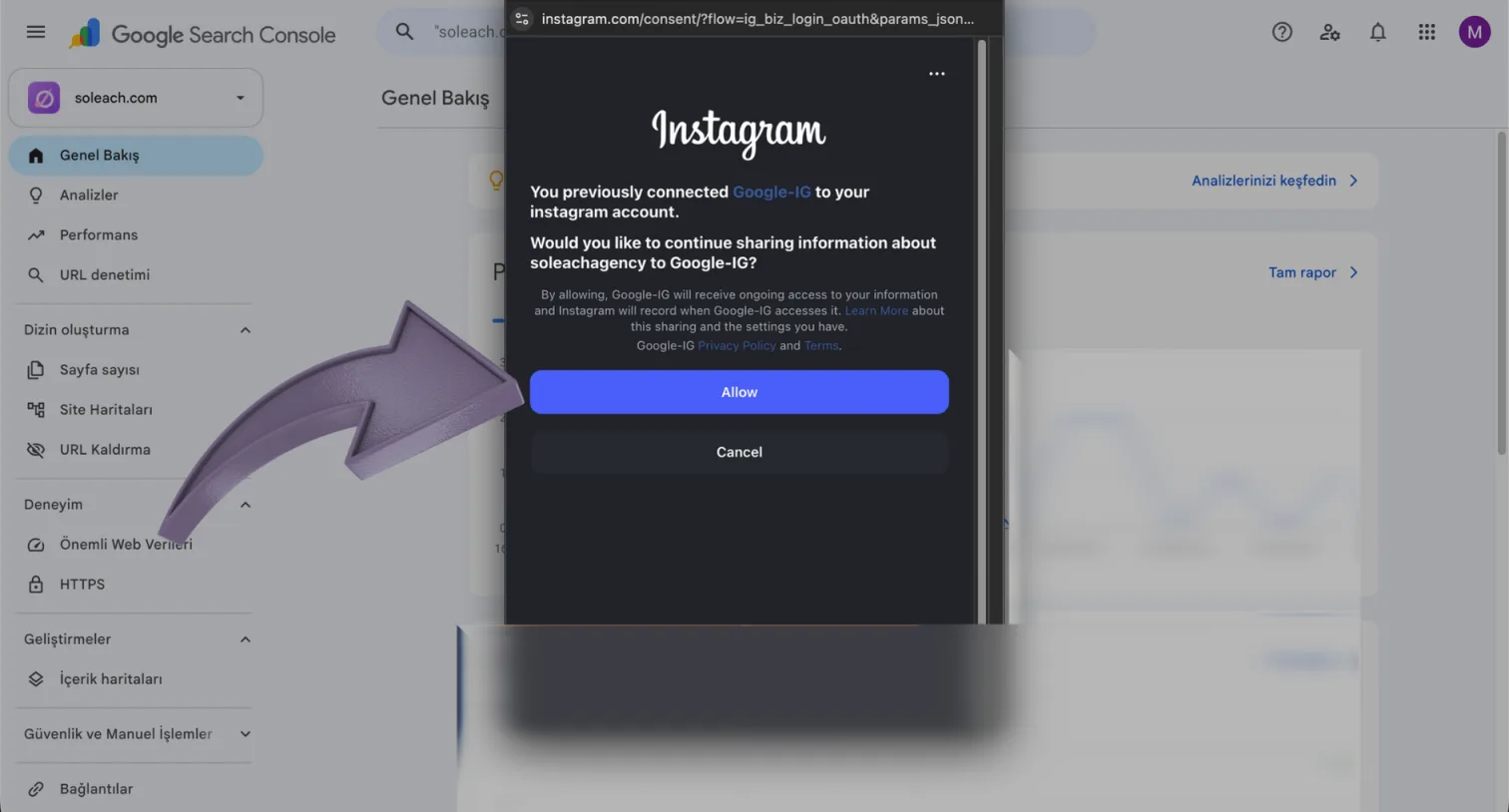
One small note: the consent screen's address is `instagram.com/consent/?flow=ig_biz_login_oauth`, meaning authorization runs through Instagram's business login flow. We completed these steps with a business account.
Step by step: adding an Instagram account to Search Console
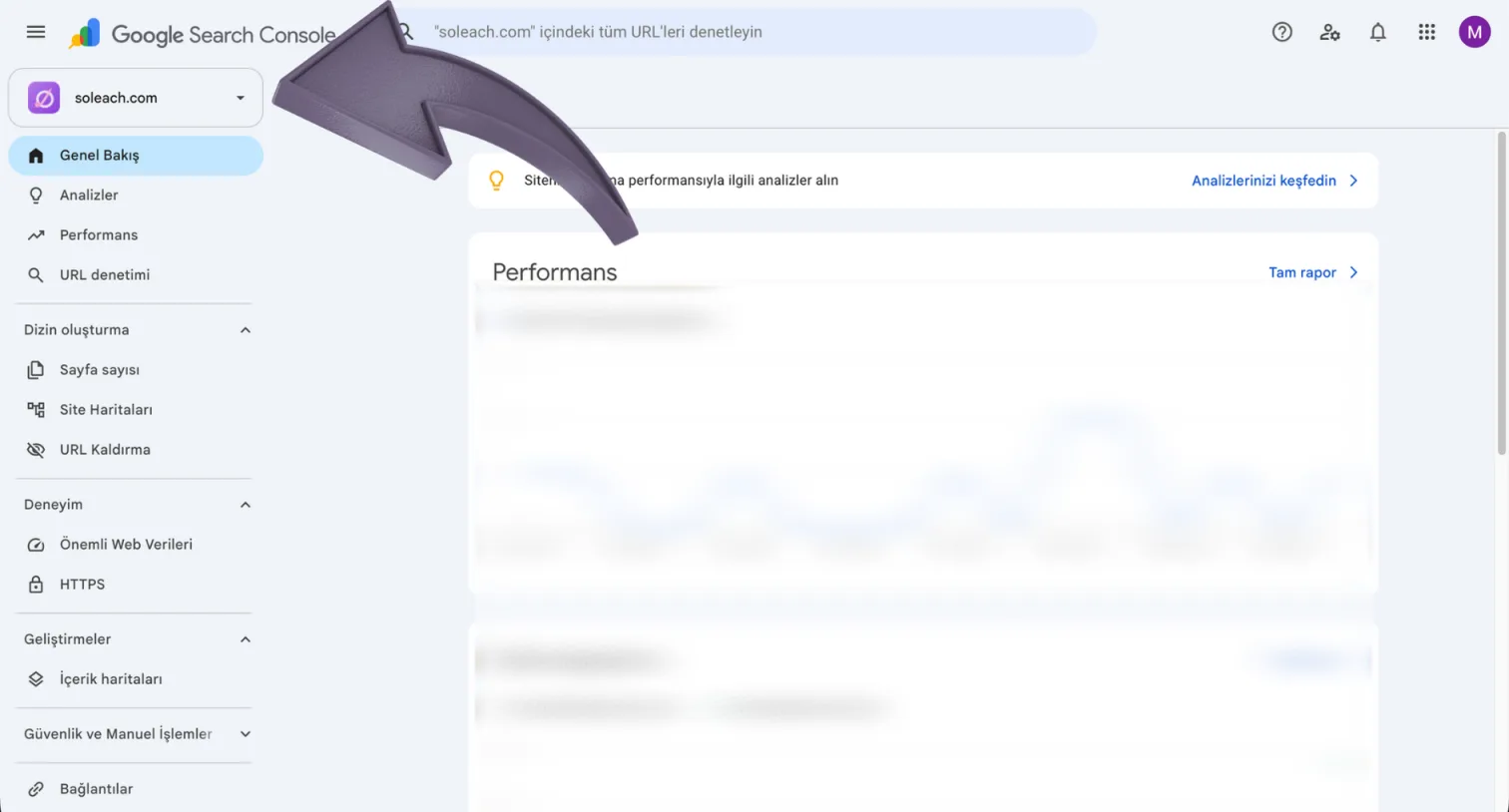
1. Open the property picker in the top left
Go to Google Search Console. At the very top of the left panel, just below the search box, there's a box carrying the name of the property you currently have open. Click it.
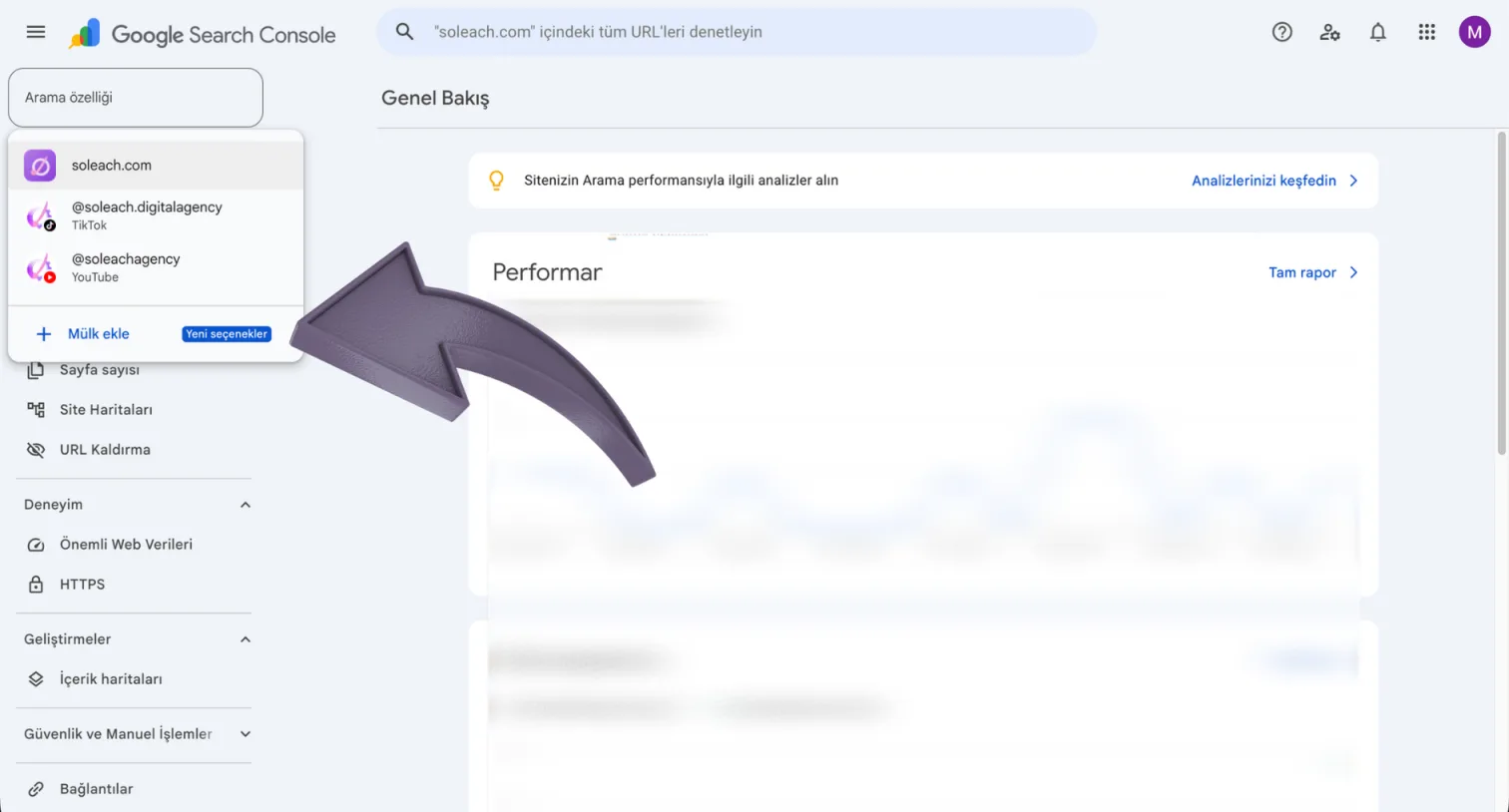
2. Click "Add property" at the bottom of the list
The dropdown shows the properties you've already added. At the bottom sits the "Add property" row, and the "New options" badge next to it points at exactly this update.
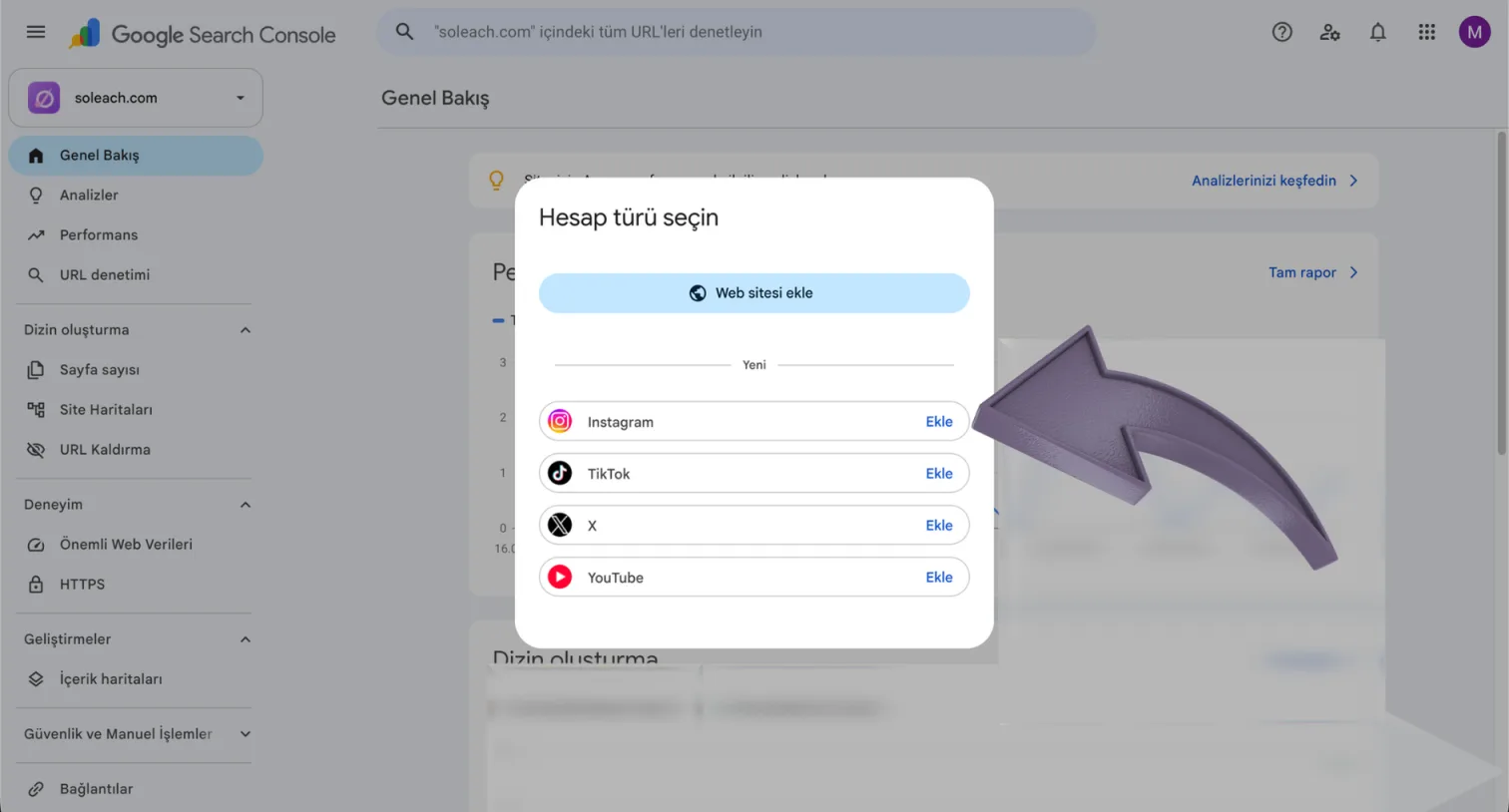
3. Click "Add" next to Instagram in the account type dialog
A dialog titled "Select account type" appears. The familiar "Add website" option sits at the top; below a "New" divider you get four rows: Instagram, TikTok, X and YouTube. The "Add" link on the right of each row starts that platform's flow — we marked Instagram, but for the other three the only thing you do differently is click their "Add" instead.
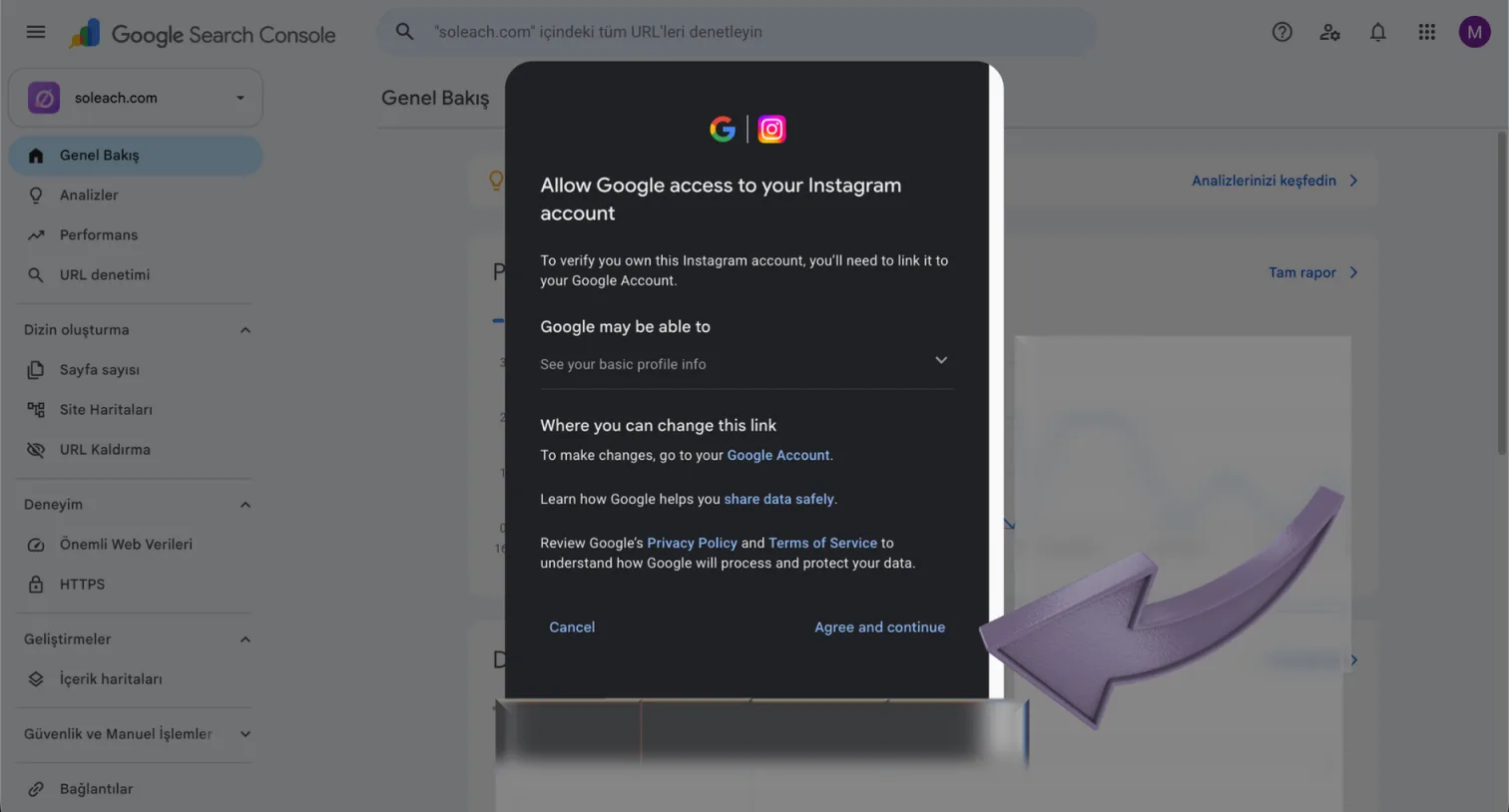
4. Approve Google's consent screen
The first consent screen is Google's: "Allow Google access to your Instagram account". The part worth reading is the "Google may be able to" block in the middle — the only scope requested is "See your basic profile info". The screen also tells you where to change the link later: your Google Account. Click "Agree and continue".
5. Click "Allow" on Instagram's consent screen
The second consent screen belongs to Instagram and opens in its own window. If you've connected the account to Google before, you'll see "You previously connected Google-IG to your instagram account" — the question is whether sharing continues. Click the purple "Allow" button. Choosing "Cancel" aborts the flow and no property is created.
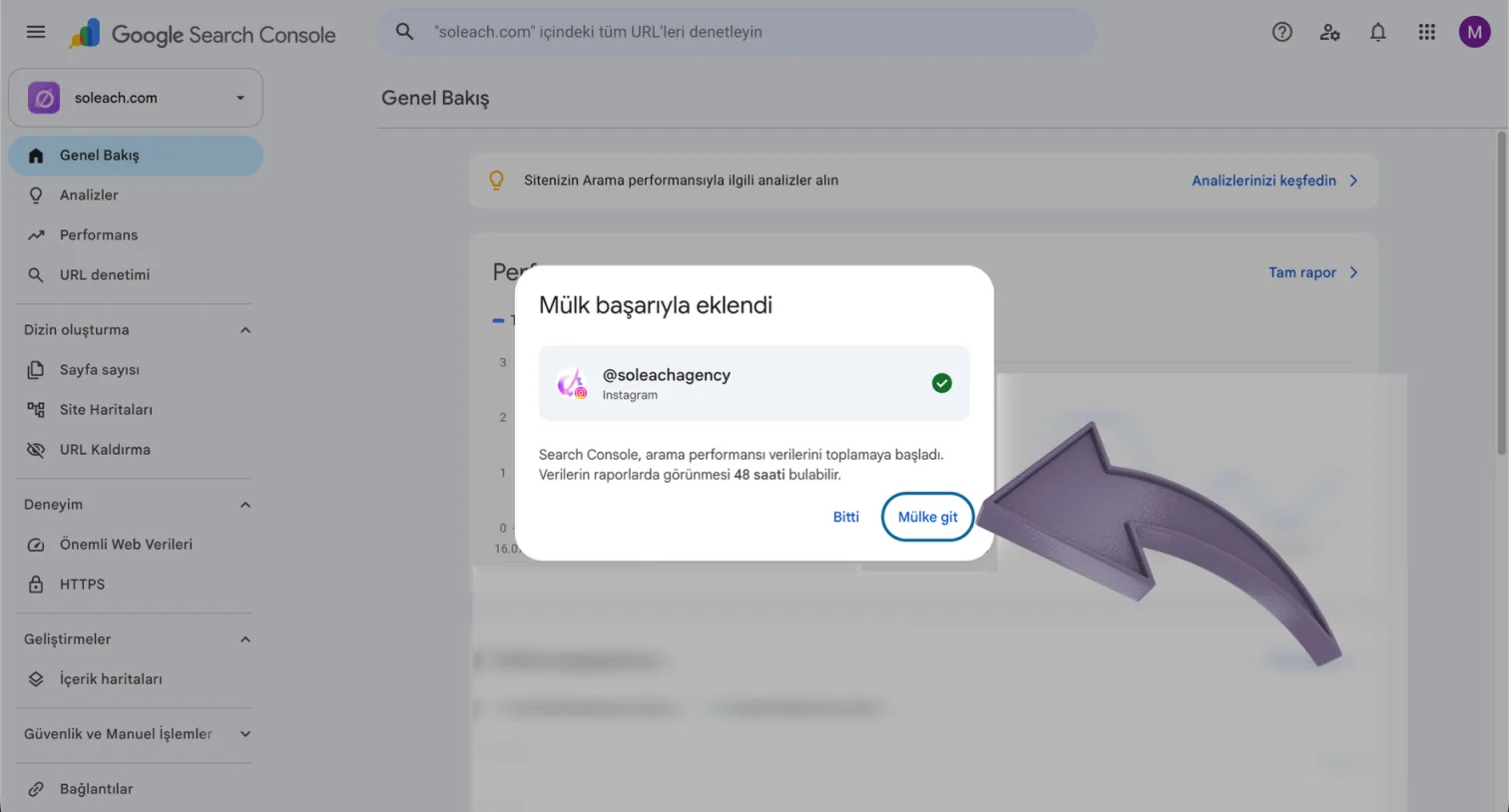
6. Click "Go to property" on the success screen
Once verification completes, Search Console confirms the account with a green check and gives you the one number that matters here: it has started collecting search performance data, and it can take up to 48 hours for that data to appear in reports. That figure isn't our estimate — it's what Google's own screen says. "Go to property" takes you to the new property; "Done" closes the dialog.
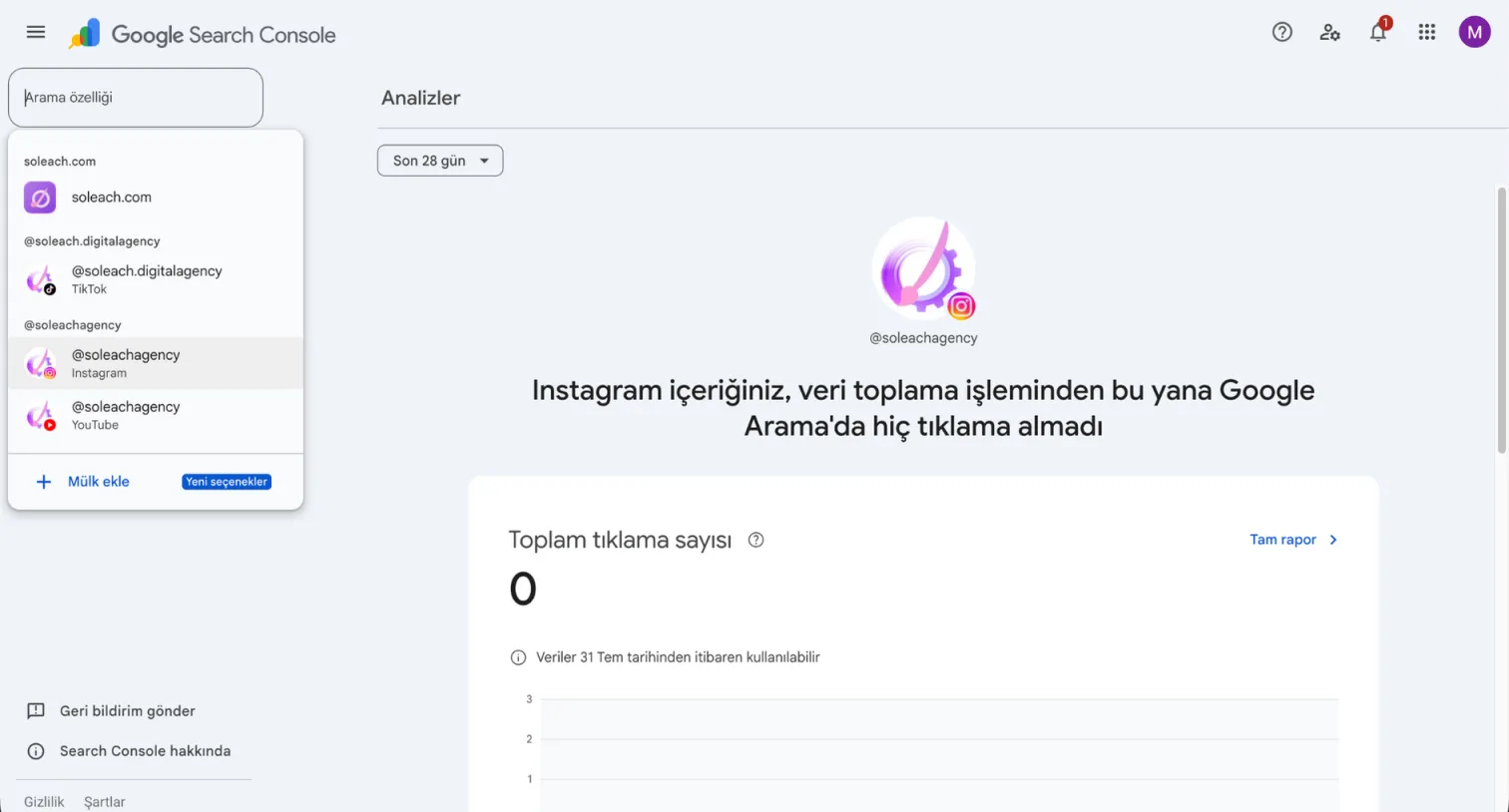
7. Getting used to the first view: zero clicks is normal
Your new property's Insights screen will most likely greet you with a line saying your Instagram content has received no clicks from Google Search since data collection began. Total clicks: 0, chart empty. The small note underneath is the real explanation: data is only available from the date collection started. So the emptiness isn't a fault, it's the property's age. In the picker you now have four entries side by side: the website, TikTok, Instagram and YouTube.
What to look at in the first week — and what to ignore
The most common mistake after setup is looking at the empty report and concluding it's broken. The second most common is building a content strategy on three days of data. Avoiding both means treating the first week as a setup check rather than a measurement period.
- First 48 hours: Do nothing. Google's own screen already told you this.
- Days 3-7: Ask one question only — has any row appeared in the table? If yes, the connection works; how small the numbers are means nothing at this stage.
- First month: Read the query list, but don't decide anything. What you're looking for isn't volume, it's surprise: if people search your brand alongside a term you didn't expect, write it down.
- What to ignore: Average position. Computed from a handful of impressions it swings wildly and misleads early on.
- Historical data: There is none. The table starts the day you opened the property, which is why postponing setup has an invisible cost.
Once data starts accumulating, our main article covers what this report is actually good for — query groups, the 24-hour filter, comparing Reels against carousels. For how to read it alongside the platform dashboards, see our social media analytics tools comparison.
Common snags
- No social platforms under "Add property": Reload the page and check which Google account you're signed into. The feature has been available worldwide since 29 July 2026 (Search Engine Journal, 2026).
- The consent window never opened: Your browser's pop-up blocker may be cutting off the Instagram window in step five. Allow pop-ups for the Search Console domain and restart the flow.
- You connected the wrong Instagram account: Whichever Instagram session is open in the browser is the one it connects. Switch to the right account and repeat the flow; each account is added as a separate property anyway.
- The property became inaccessible later: Ownership is rechecked periodically. If your session on the platform side expires the connection drops; re-verifying returns you to the same report without waiting for data to accumulate again (Google Search Console Help).
- 48 hours passed and it's still empty: Probably nothing is wrong. Google Search clicks are rare for smaller accounts, and the table can stay empty for weeks. That reflects volume, not a broken setup.
Frequently asked questions
Am I giving Google my Instagram password?
No. Verification happens through an authorization flow, not password sharing: you click "Allow" on Instagram's own consent screen, and the scope shown on Google's consent screen is limited to basic profile info ("See your basic profile info"). That same screen also tells you the link can be changed later from your Google Account.
When does data start showing up?
Search Console's post-setup screen says it can take up to 48 hours for data to appear in reports. No historical data arrives; charts only fill from the date collection started (Google Search Console Help).
Do the same steps work for TikTok, X and YouTube?
Yes. All four sit in the same "Select account type" dialog, and the "Add" link beside each starts the same authorization flow. Search Console currently supports these four platforms (Google Search Console Help).
I run several Instagram accounts — can I add them all?
Yes. Each account is added as its own property and reported separately, so if you manage more than one profile you need to repeat the process for each (Google Search Console Help).
Does adding the account change how my Instagram content ranks on Google?
No. Platform properties are a measurement tool; opening a property doesn't produce rankings. Your content was already appearing in Google Search — this feature simply makes that visibility measurable for the first time.
Sources
- Google. About platform properties in Search Console. Search Console Help. — Google Search Console Help
- Google. (2026, July 29). Analyze your social and video platform content performance in Search Console. Google Search Central Documentation. — Google Search Central
- Southern, M. G. (2026, July 29). Google Opens Search Console Social Reporting To Everyone. Search Engine Journal. — Search Engine Journal